How to Remote Control AI Agents On Your Phone
A guide to running AI agents on your phone using Tailscale, OpenSSH, and Termius.
Your AI agent runs on your computer. Your phone is in your pocket. Wouldn’t it be useful to run the agent from anywhere?
You can do this in many ways, actually. We will go with the one that has the least complexity and works on any device.
To start, you need three tools:
- Tailscale — a private network between your devices, through the internet
- OpenSSH Server — a service on Windows that accepts remote connections
- Termius — an SSH client app on your phone
The connection path visualized:
Phone → Tailscale → Windows OpenSSH → AI agentTailscale is what makes this setup safe. It works by building a private mesh network between your devices and connecting them peer-to-peer, so you don’t have to expose SSH ports on your router.
This setup uses Windows, but it works just fine on macOS/Linux with slightly different instructions (ask your agent).
Step 1: Install Tailscale on both devices
Install Tailscale on your computer and phone.
Sign in to both devices with the same Tailscale account. Keep Tailscale active on both devices.
On Windows, open a terminal and run:
tailscale ip -4Save the 100.x.x.x address. This is the address of your computer on the Tailscale network.
Step 2: Run OpenSSH Server on Windows
Now install OpenSSH server and do automatic startup.
Open PowerShell as Administrator and run:
Add-WindowsCapability -Online -Name OpenSSH.Server~~~~0.0.1.0
Start-Service sshd
Set-Service sshd -StartupType Automatic
Check that the service works:
Get-Service sshd
Test-NetConnection localhost -Port 22
The service must show Running, and the test must show TcpTestSucceeded : True.
Step 3: Get your Windows credentials
Run:
$env:USERNAMEYou need this username and your Windows account password to sign in from the phone.
Use your password, not the Windows PIN.
Step 4: Install Termius on your phone
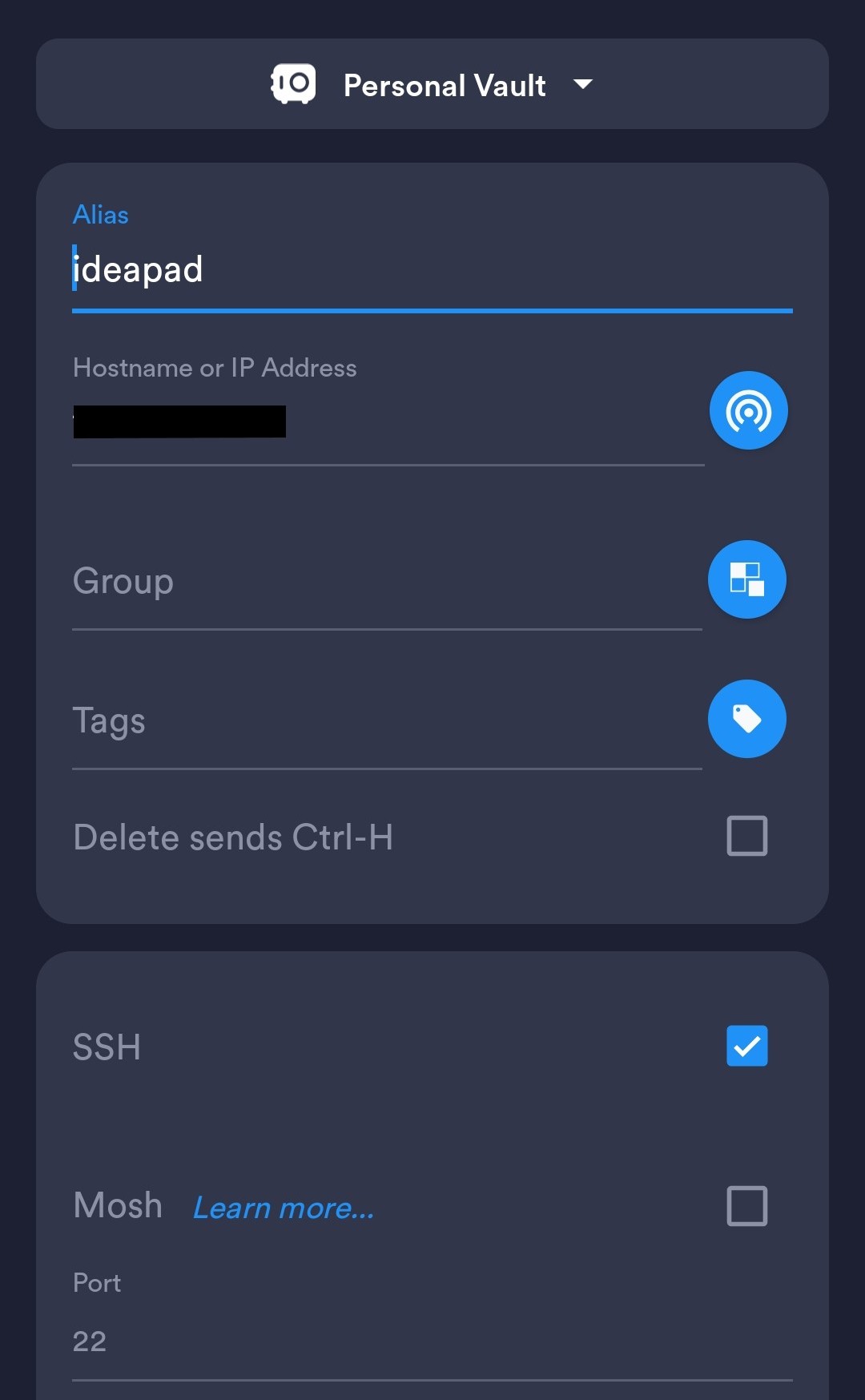
Install Termius from the app store. This is free and no login is required. Create a new host using these values:
| Field | Value |
|---|---|
| Address | Tailscale 100.x.x.x address |
| Port | 22 |
| Username | Output from $env:USERNAME |
| Password | Windows account password |
Select Connect. Accept the SSH host key only if this is your computer.
Step 5: Start your AI agent
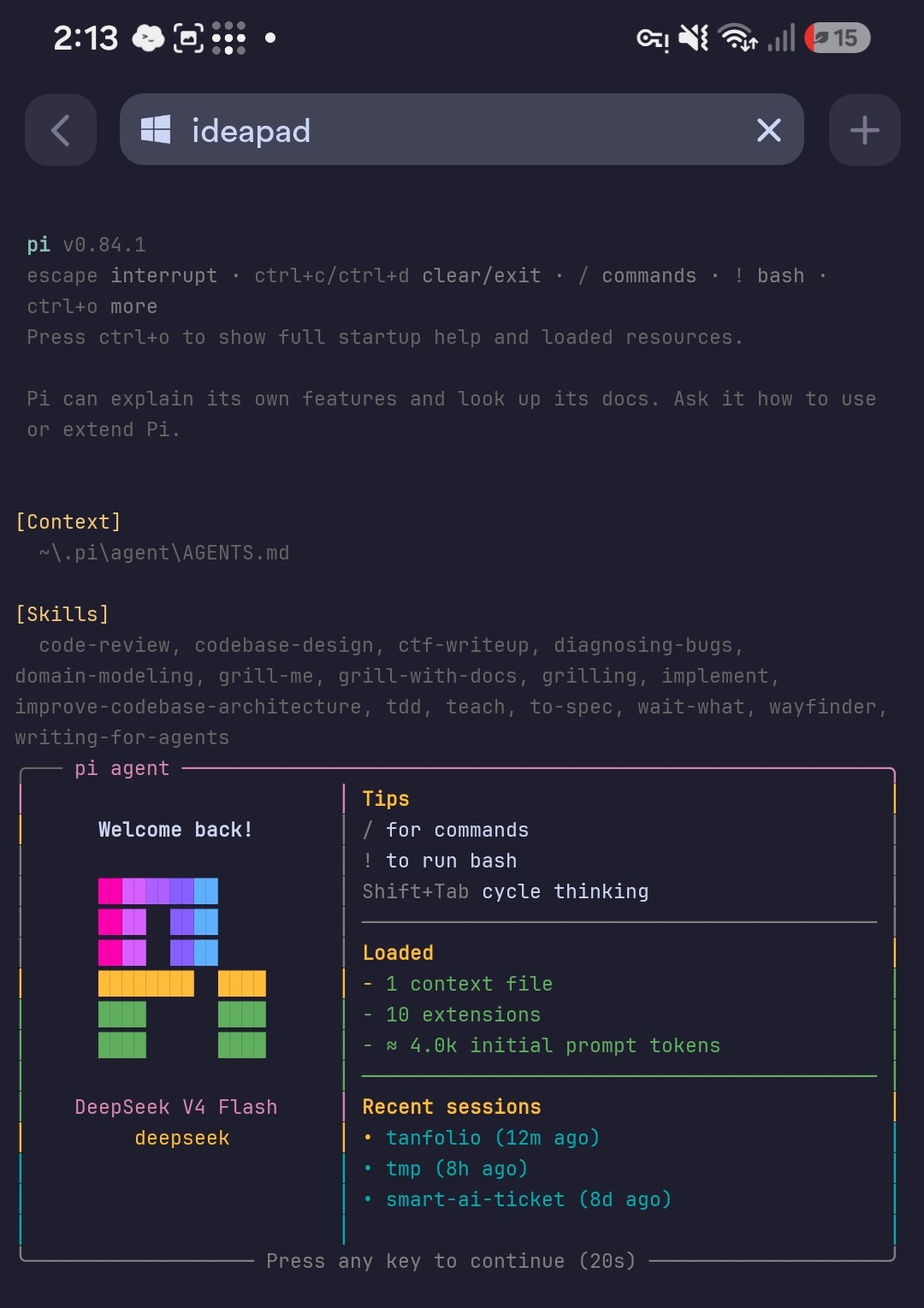
When Termius opens the computer terminal, start your agent with the command you normally use. For example:
piKeep the Termius connection open while the agent works, as closing it will end the session. There is a way to work around this using tmux or similar apps, but this is out of scope for the article.
If the connection fails
These are what you need to check:
- Tailscale is active on both devices
- Both devices are on the same Tailscale account
- Computer is not sleeping
sshdis running- Termius uses the Tailscale address, not local Wi-Fi address
That is all. You can now talk to your AI agent from anywhere.